How to Identify your Servotor32 Firmware
There are two options available for identifying your Servotor32’s firmware:
Through PoMoCo 2, and through serial commands.
Option 1 – PoMoCo 2
1
Checking Version Numbers with PoMoCo 2
Don’t have PoMoCo 2? Get it here.
When using PoMoCo 2, the connection bar up top shows the status of the connection with the Servotor32, as well as its firmware version.
Once you autoconnect/connect with the board, you should see the firmware version on the right:

Option 2 – Serial Commands
1
Install the Arduino IDE
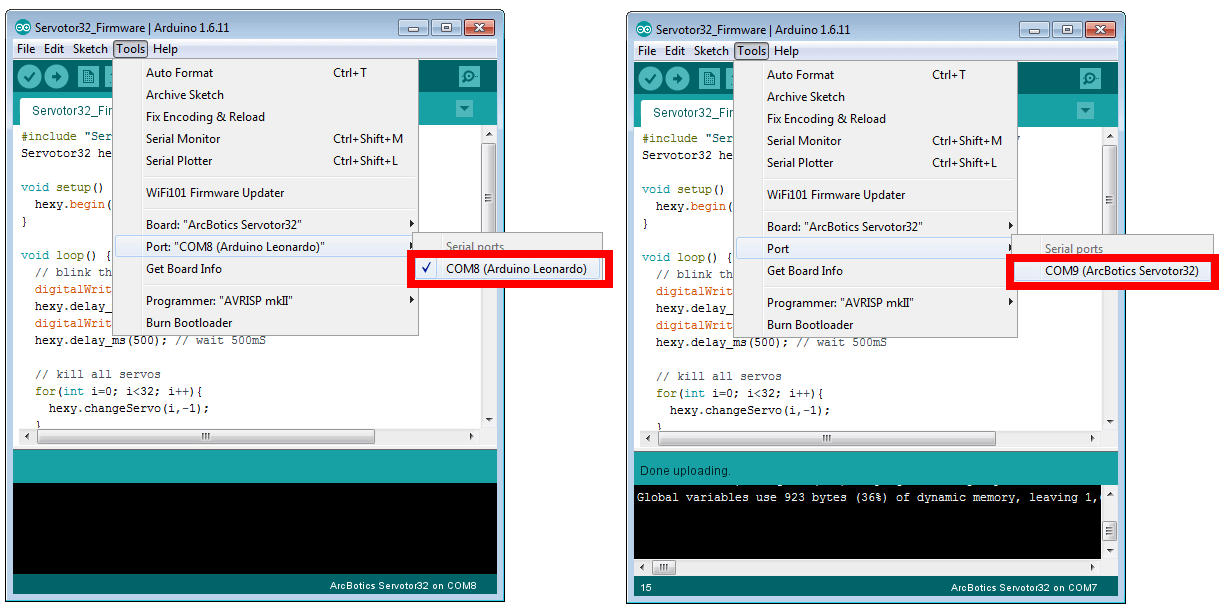
Select the Servotor32’s serial port for the Servotor32 from the menu Tools > Port.
It should say ‘Arduino Leonardo’ or ‘ArcBotics Servotor32’ on the right if you are using the latest version of Arduino. If you don’t see this port, try plugging the board back in, re-installing PoMoCo, or installing just the driver.
3
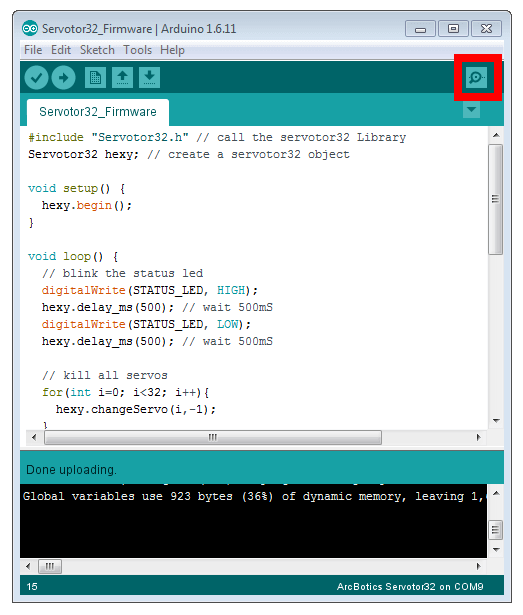
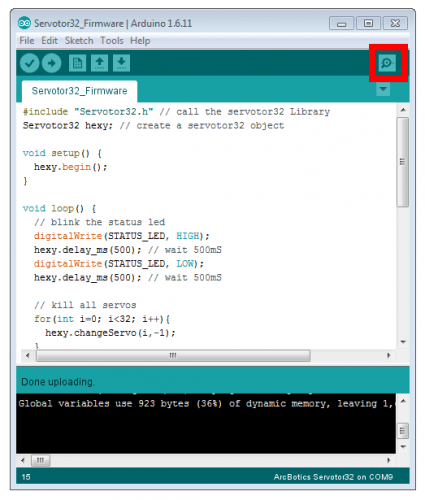
Open the Serial Monitor
Click on the Serial Monitor in the upper right-hand corner of the Arduino IDE to talk to the board – make sure the serial port is selected first:
4
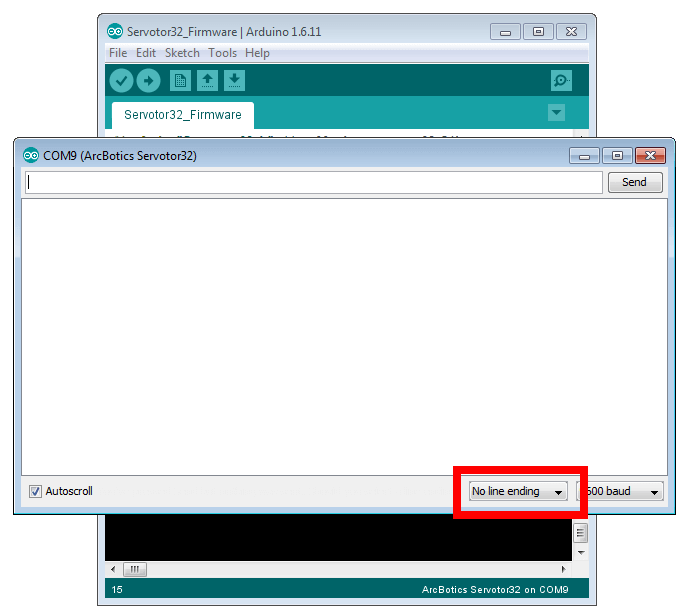
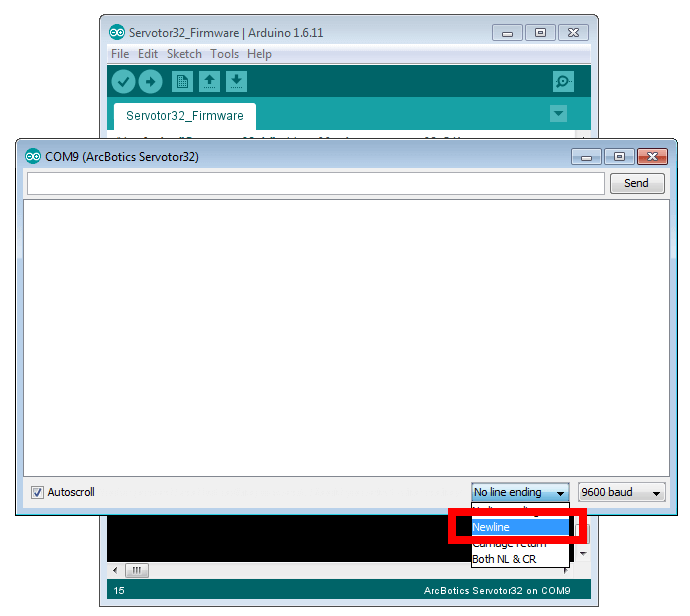
Select ‘newline’ as Your Line Ending
With the Serial Monitor Open, select newline from the line ending slection box at the bottom of the Serial Monitor windows
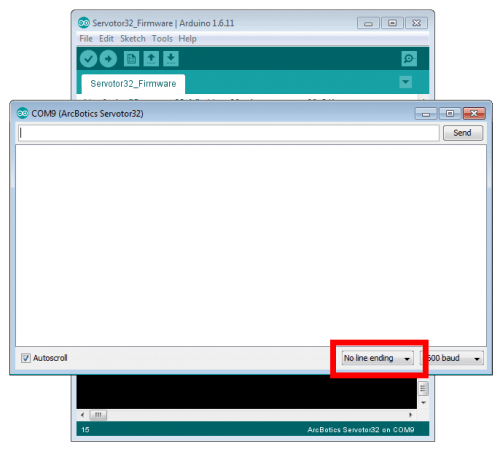
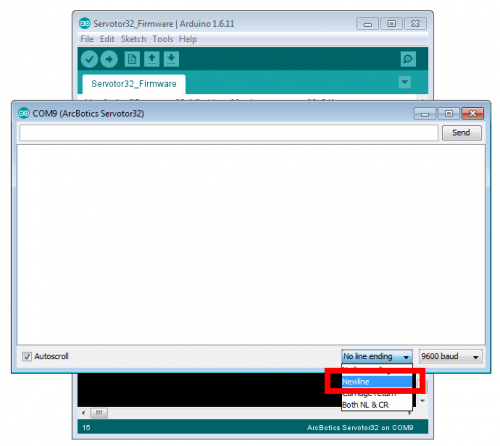
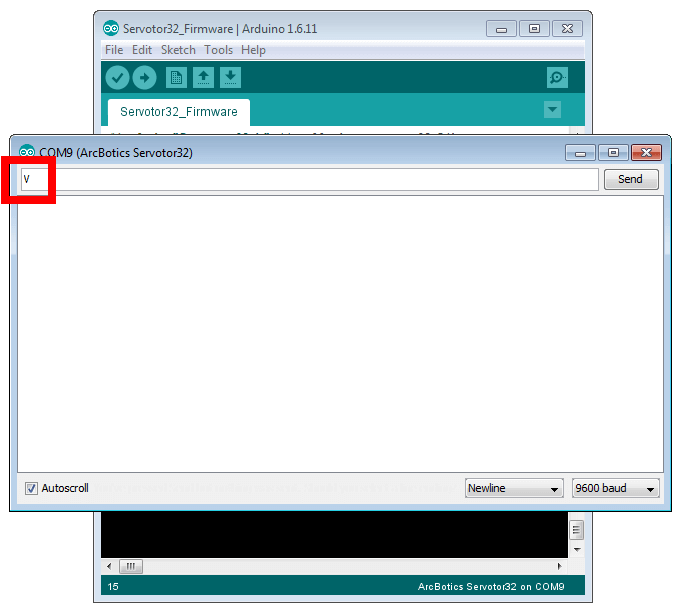
With ‘newline’ selected, type the capital letter V into the box on top and press enter.
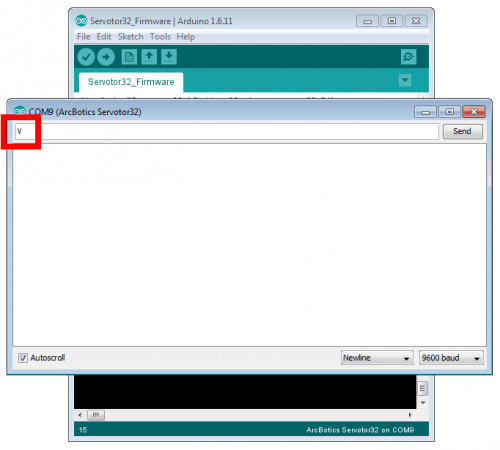
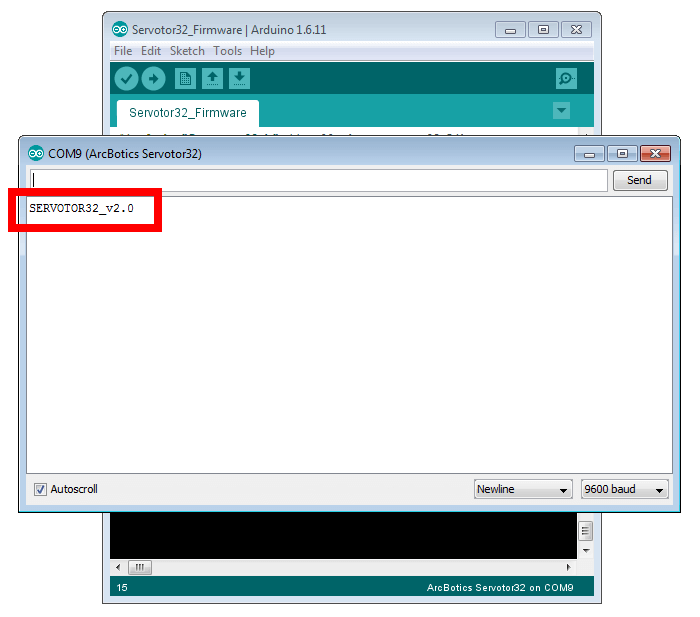
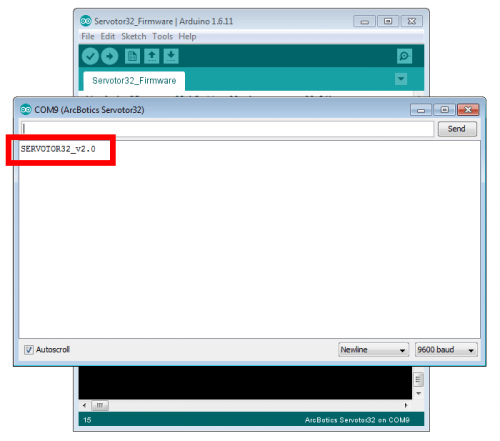
The board should reply back with its firmware version.
If you see the response below (SERVOTOR32_v2.0), or some other similar version number, it’s a success!
Now you can play with PoMoCo
You can also try other commands with the board. We have a full list here:
Servotor32 Serial Commands